How to Copy a Course in D2LUpdated 23 minutes ago
Instructions for Copying a Course in D2L
Open the destination course (the new, empty course you want to clone the material into).
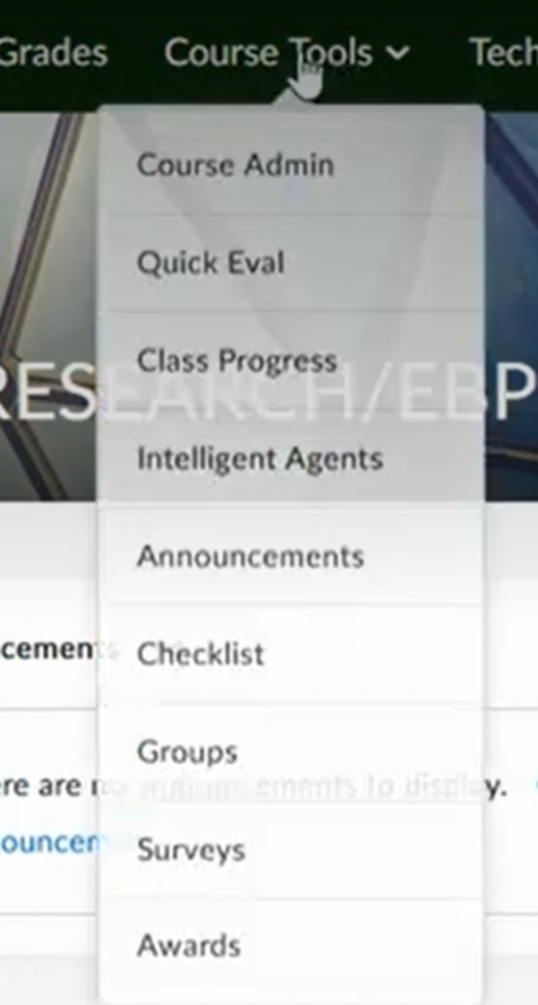
Click Course Admin (or Edit Course) in the navigation bar.
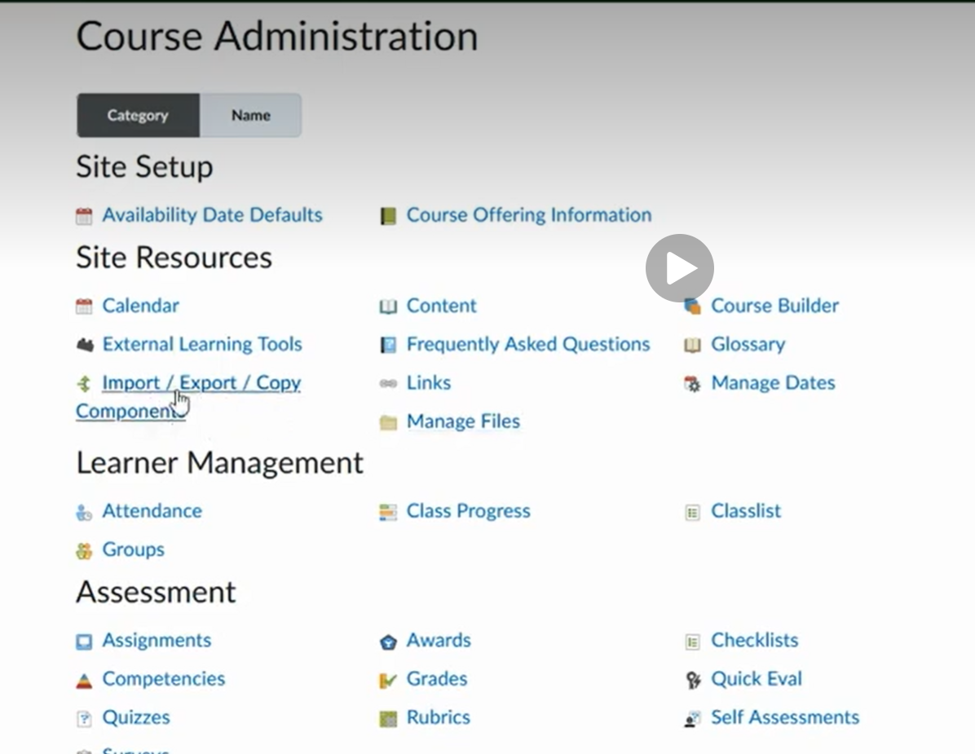
Under the Site Resources category, select Import/Export/Copy Components.
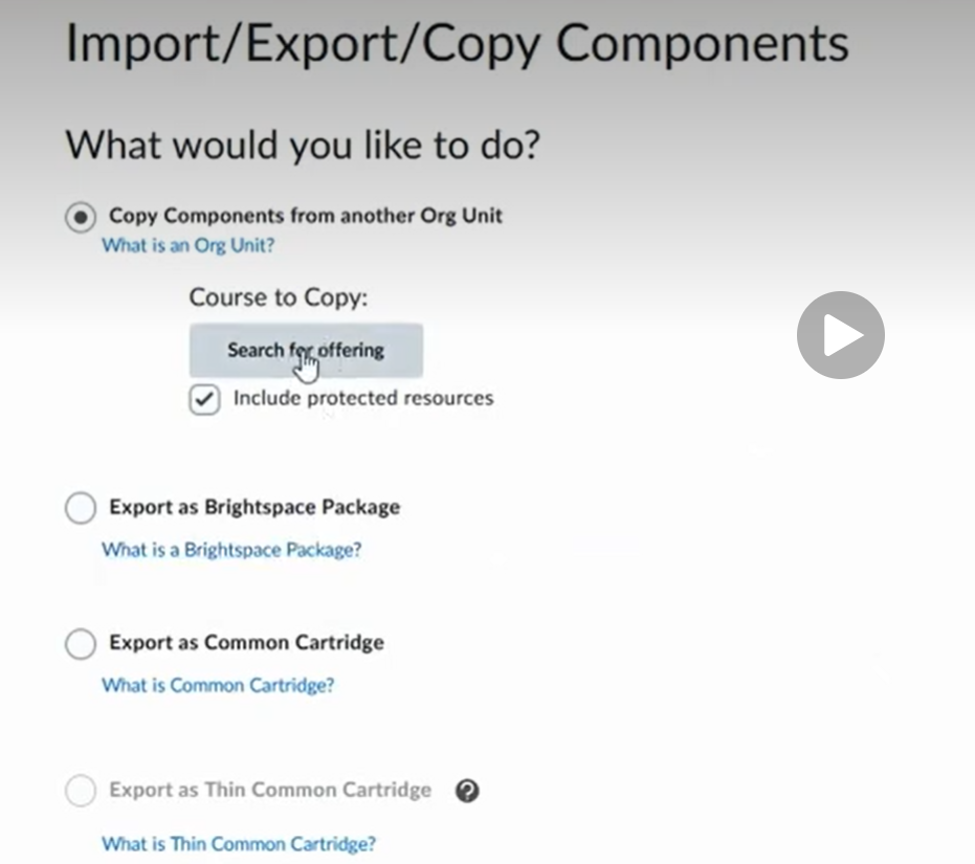
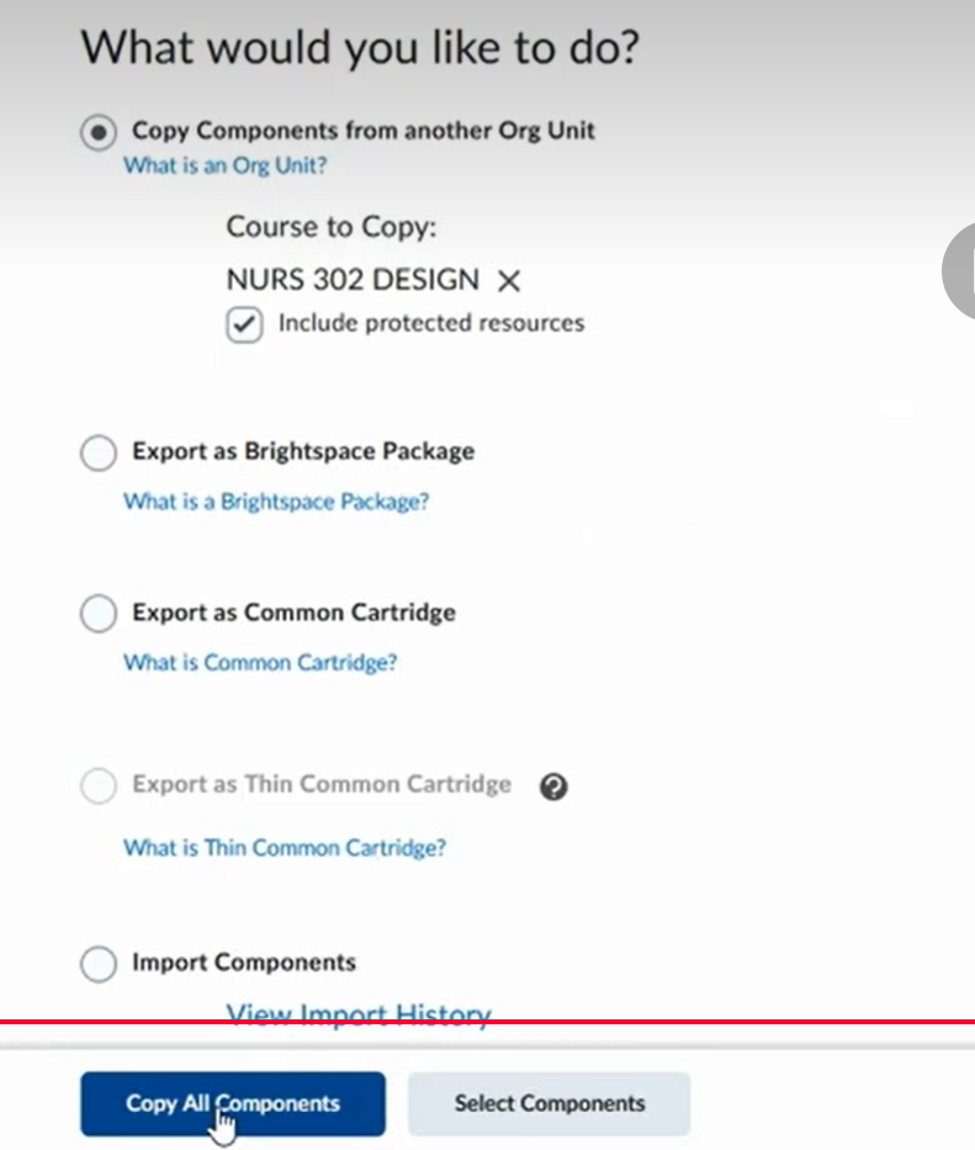
Select the Copy Components from another Org Unit radio button and click Search for offering.
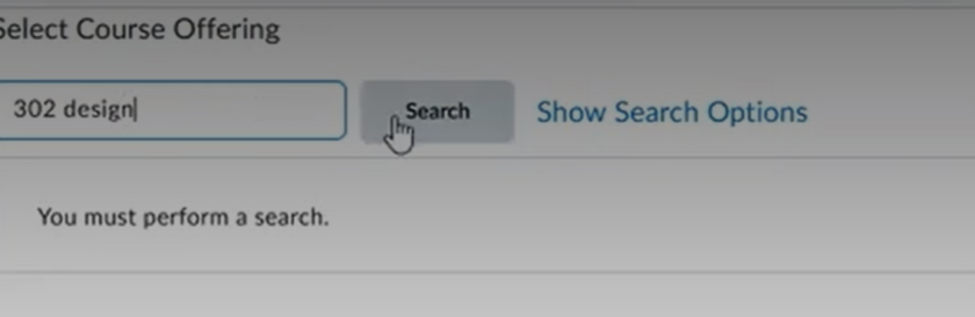
Type the name or course code of the course you want to copy from, click the magnifying glass, and check the box next to your desired course.
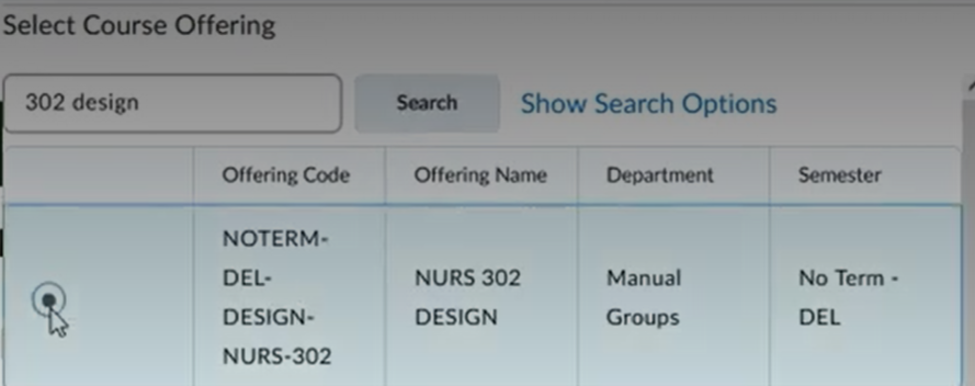
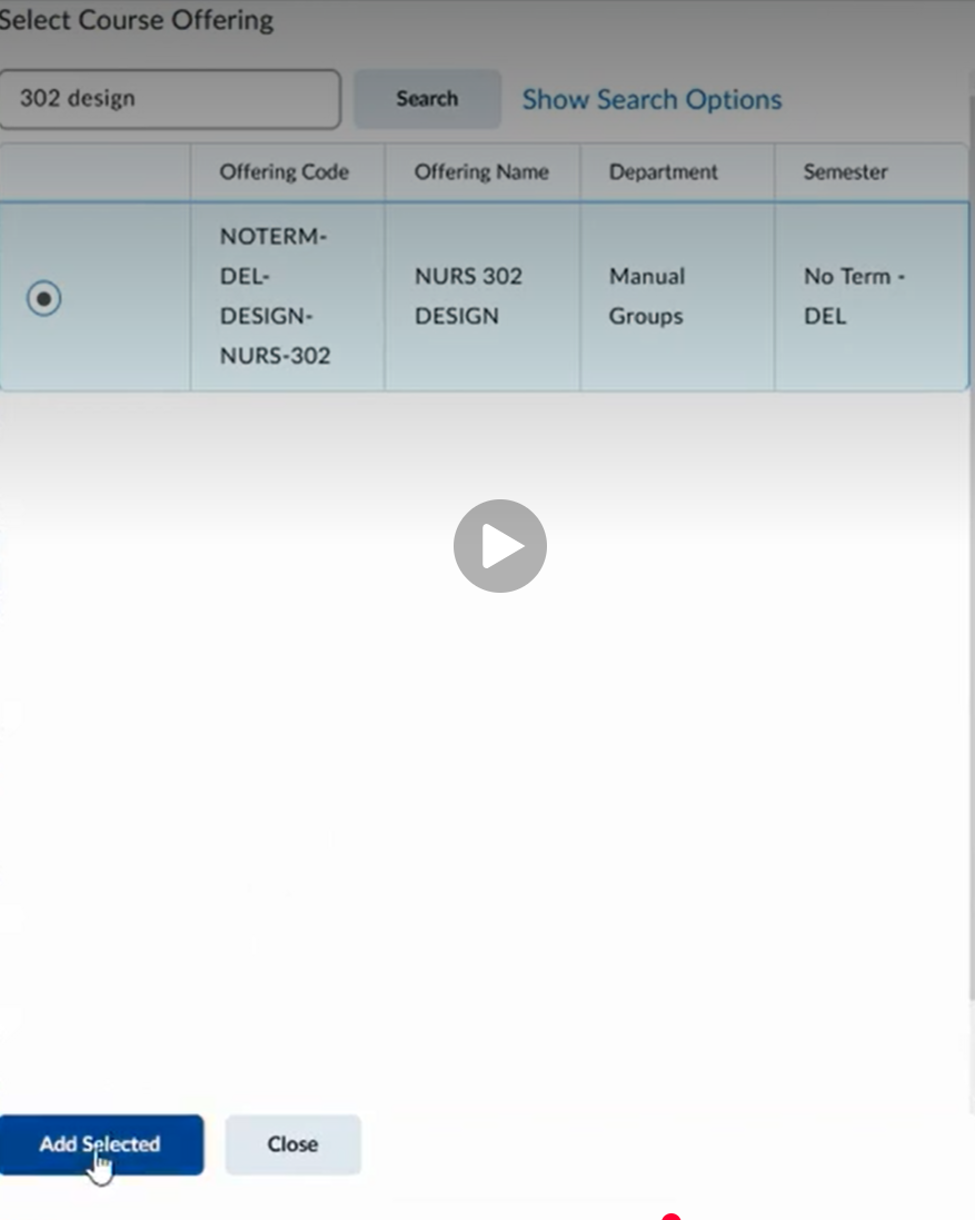
Click Add Selected.
Click either Copy All Components (recommended for a complete clone) or Select Components if you only want to copy specific items like quizzes or the grade book.
The course will show a progress bar.
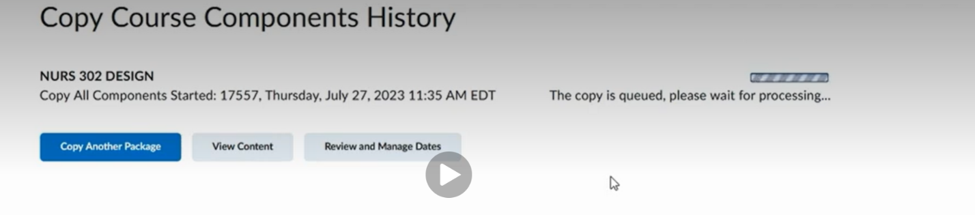
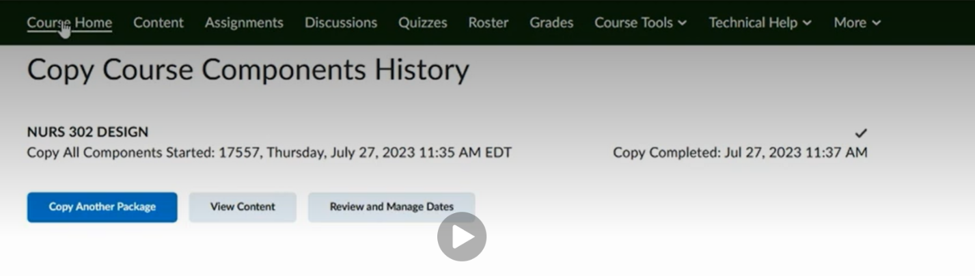
Once complete it will say "Copy Completed.".
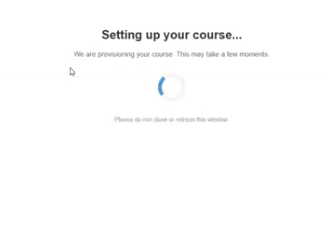
In the course, click on any activity to begin the auto provisioning process.