How to Copy a Course in CanvasUpdated 3 months ago
Instructions for Copying a Course in Canvas
Open your new course: Log in to Canvas, go to your Dashboard, and click into the new course where you want to copy the materials.

Click Settings in the left sidebar.

Access the import tool: In the right-hand sidebar of your new course, click Import Existing Content. (Note: If you are on a smaller screen, this might be at the bottom of the page).

Select the content type: From the "Content Type" drop-down menu, select Copy a Canvas Course.

Choose the source course: Search for the name of the course you want to copy from using the "Search for a course" field. (Check the Include completed courses box if it's from a previous semester).

Select your content: Choose All content if you want to duplicate the entire course. Select Select specific content if you only want to move specific assignments, quizzes, or modules.

Adjust dates (Optional): Check the Adjust events and due dates box if you want to shift your assignment deadlines to match your new term, or choose to remove dates entirely.

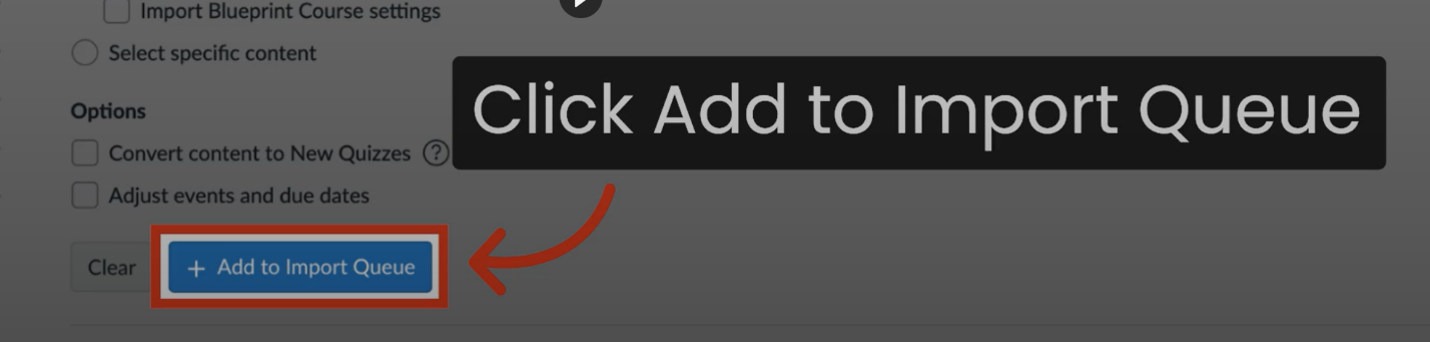
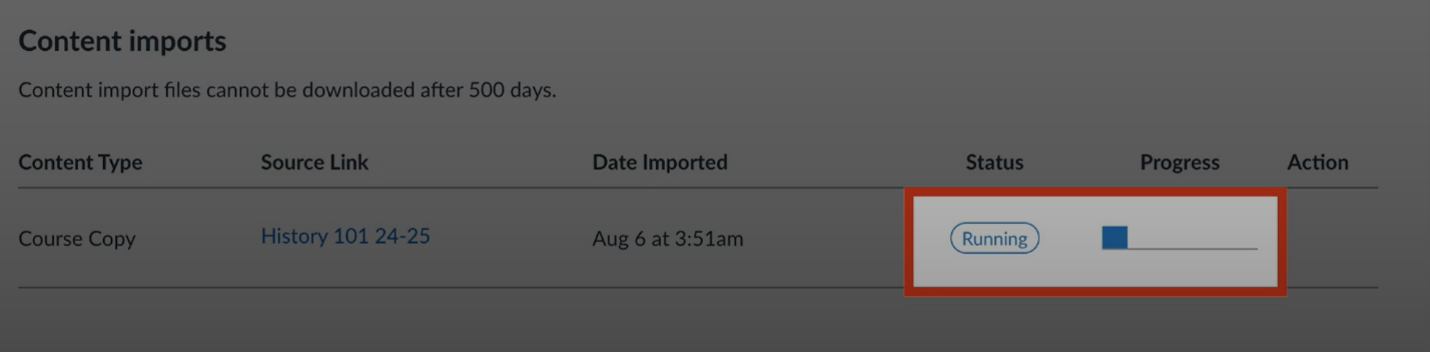
Import: Click the Import button. You can monitor the progress bar under the "Current Jobs" section on the page.
The course will show a progress bar.
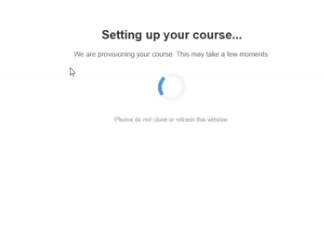
Once completed, click on any activity to begin the auto provisioning process.