How to Copy a Course in Blackboard UltraUpdated 2 days ago
Instructions for Copying a Course in Blackboard Ultra
In the Blackboard Ultra experience, you "pull" items from past courses into your current course, rather than pushing them from the old one.
Open the Destination Course: Log into Blackboard and open the empty or new course shell where you want the content to go.
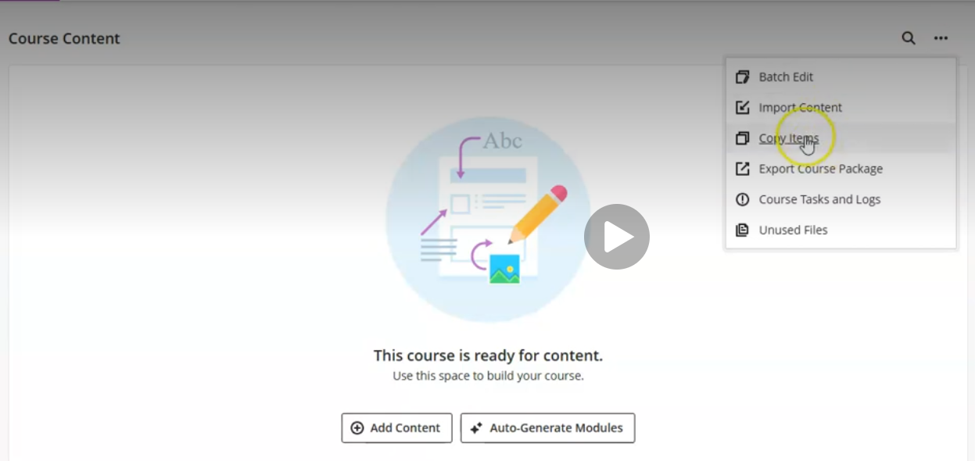
Access Copy Items: On the Course Content page, locate the three dots (More Options) menu in the top right corner and click Copy Items.
Locate Source Course: Use the search bar or arrows to find the past course you are copying from.
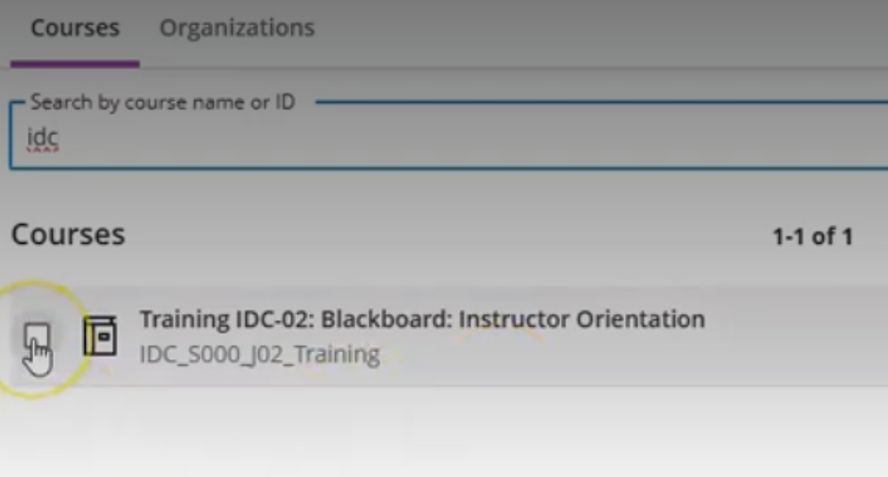
Select Materials:Click on the source course to view its categories (Content, Discussions, Question Banks, etc.) and check the specific items you want to transfer, or click the full course checkbox for a complete copy.
Start Copy: Select Start Copy. A spinning validation icon will appear.
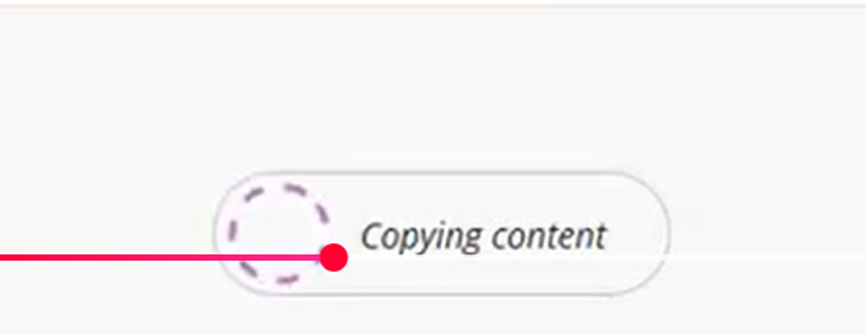
You will receive a notification when the transfer is complete.
Once complete, click on any activity in the course to begin the auto provisioning process.