How to Copy a Course in Blackboard OriginalUpdated 4 hours ago
Instructions for Copying a Course in Blackboard Original
If your institution is still using the Blackboard Original experience, the copy process is initiated from the old course, rather than the new one.
Open the Source Course: Log in and open the course that already has all your materials.
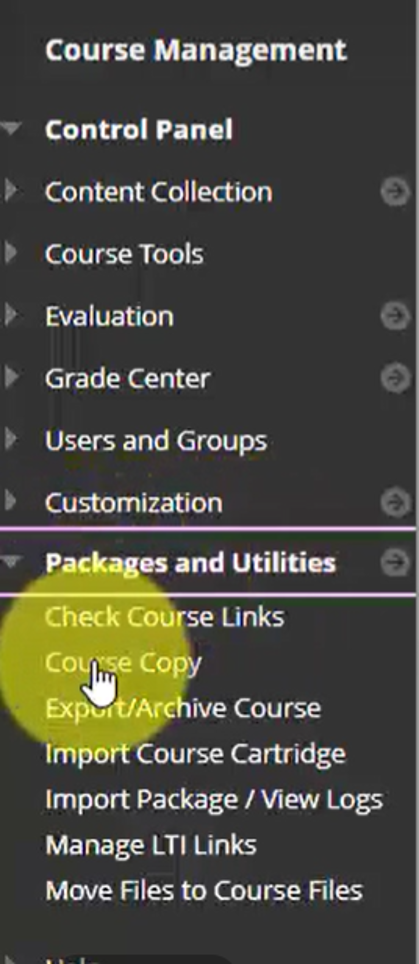
Navigate to Course Copy: On the left navigation panel, expand Packages and Utilities and click Course Copy.
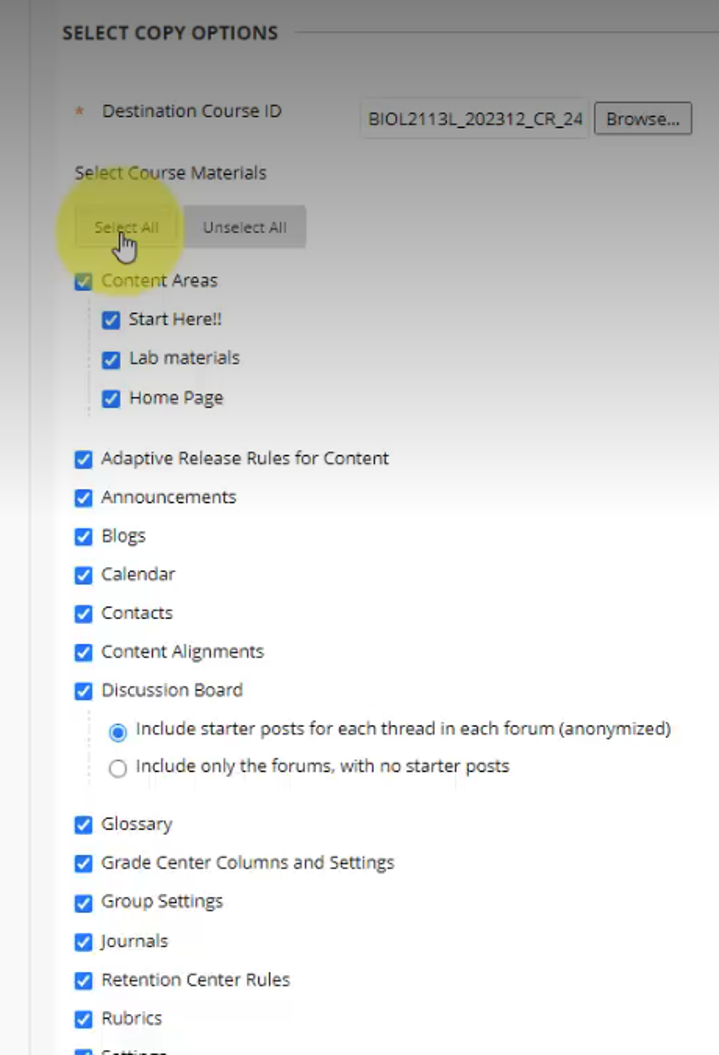
Set Destination: Change the copy type to Copy Course Materials into an Existing Course, click Browse, and find your new destination course in the popup window.
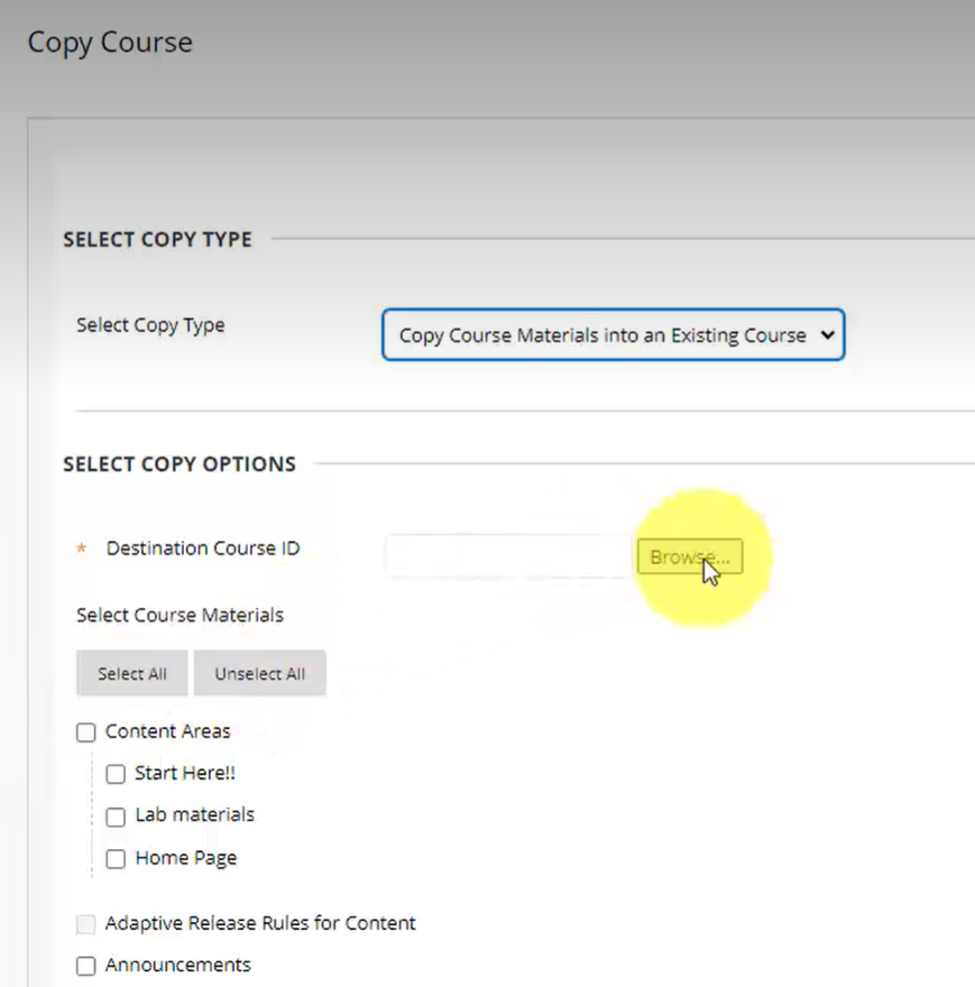
Select Course Materials: Check the boxes for the materials you want to copy. Be sure to check Grade Center Columns and Settings and Tests, Surveys, and Pools if you are moving graded items. (Do NOT include enrollments).
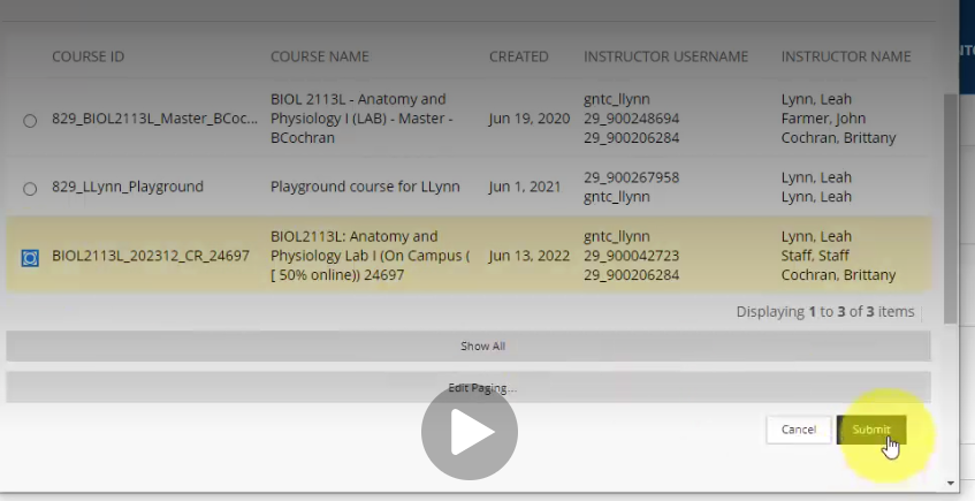
Submit: Click Submit to process the transfer.
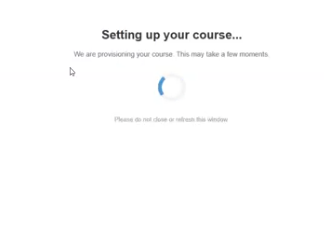
In the course, click on any activity to begin the auto provisioning process.